18. Navigation drawer
A navigation drawer is a panel that usually displays navigation options on the left edge of the screen, as shown on the right side of the figure below. It is hidden most of the time, but is revealed when the user swipes a finger from the left edge of the screen or touches the navigation icon in the app bar, as shown on the left side of the figure below.
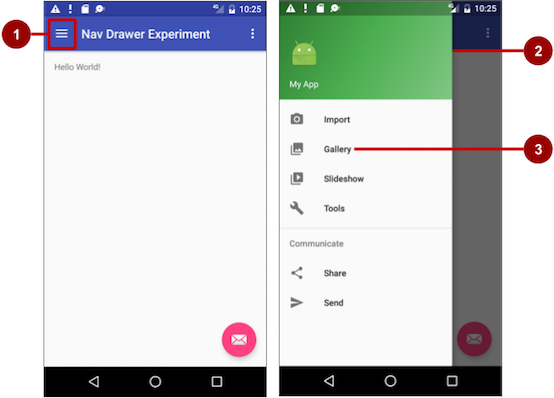
In the figure above:
- Navigation icon in the app bar
- Navigation drawer
- Navigation drawer menu item
A good example of a navigation drawer is in the Gmail app, which provides access to the inbox, labeled email folders, and settings. The best practice for employing a navigation drawer is to provide descendant navigation from the parent Activity to all of the other child screens in an app. It can display many navigation targets at once—for example, it can contain buttons (like a dashboard), tabs, or a list of items (like the Gmail drawer).
To make a navigation drawer in your app, you need to create the following layouts:
- A navigation drawer as the Activity layout root ViewGroup
- A navigation View for the drawer itself
- An app bar layout that includes room for a navigation icon button
- A content layout for the Activity that displays the navigation drawer
- A layout for the navigation drawer header
Follow these general steps:
- Populate the navigation drawer menu with item titles and icons.
- Set up the navigation drawer and item listeners in the Activity code.
- Handle the navigation menu item selections.
Adding Dependency:
implementation 'com.google.android.material:material:1.1.0'
18.1. Creating the navigation drawer layout
To create a navigation drawer layout, use the DrawerLayout APIs available in the Support Library. For design specifications, follow the design principles for navigation drawers in the Navigation Drawer design guide.
To add a navigation drawer, use a DrawerLayout as the root ViewGroup of your Activity layout. Inside the DrawerLayout, add one View that contains the main content for the screen (your primary layout when the drawer is hidden) and another View, typically a NavigationView, that contains the contents of the navigation drawer.
Tip: To make your layouts simpler to understand, use the include tag to include an XML layout within another XML layout.
For example, the following layout uses:
- A DrawerLayout as the root of the Activity layout in activity_main.xml.
- The main content of screen defined in the app_bar_main.xml layout file.
- A NavigationView that represents a standard navigation menu that can be populated by a menu resource XML file.
Refer to the figure below that corresponds to this layout:
18.2. activity_main.xml
<?xml version="1.0" encoding="utf-8"?>
<androidx.drawerlayout.widget.DrawerLayout xmlns:android="http://schemas.android.com/apk/res/android"
xmlns:app="http://schemas.android.com/apk/res-auto"
xmlns:tools="http://schemas.android.com/tools"
android:id="@+id/drawerlayout"
android:layout_width="match_parent"
android:layout_height="match_parent"
tools:context=".MainActivity">
<include
layout="@layout/content_main"
android:layout_width="match_parent"
android:layout_height="match_parent" />
<com.google.android.material.navigation.NavigationView
android:id="@+id/navigation_view"
android:layout_width="wrap_content"
android:layout_height="match_parent"
android:layout_gravity="start"
android:fitsSystemWindows="true"
app:headerLayout="@layout/nav_header"
app:itemIconTint="#3F51B5"
app:menu="@menu/menu" />
</androidx.drawerlayout.widget.DrawerLayout>
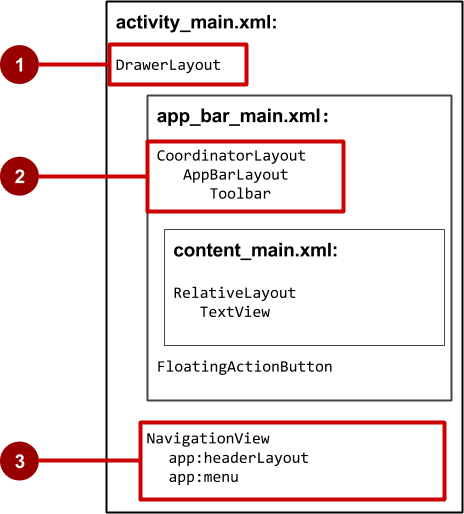
In the figure above:
- DrawerLayout is the root ViewGroup of the Activity layout.
- The included content_main.xml uses a CoordinatorLayout as its root, and defines the app bar layout with a Toolbar which will include the navigation icon to open the drawer.
- The NavigationView defines the navigation drawer layout and its header, and adds menu items to it.
Note the following in the activity_main.xml layout:
- The android:id for the DrawerLayout is -drawer_layout_. You will use this id to instantiate a drawer object in your code.
- The android:id for the NavigationView is nav_view. You will use this id to instantiate a navigationView object in your code.
- The NavigationView must specify its horizontal gravity with the android:layout_gravity attribute. Use the “start” value for this attribute (rather than “left”), so that if the app is used with right-to-left (RTF) languages, the drawer appears on the right rather than the left side.
android:layout_gravity="start"
- Use the android:fitsSystemWindows=”true” attribute to set the padding of the DrawerLayout and the NavigationView to ensure the contents don’t overlay the system windows. DrawerLayout uses fitsSystemWindows as a sign that it needs to inset its children (such as the main content ViewGroup), but still draw the top status bar background in that space. As a result, the navigation drawer appears to be overlapping, but not obscuring, the translucent top status bar. The insets you get from fitsSystemWindows will be correct on all platform versions to ensure that your content does not overlap with system-provided UI components.
18.3. The navigation drawer header
The NavigationView specifies the layout for the header of the navigation drawer with the attribute _app:headerLayout=”@layout/nav_header”. The nav_header_main.xml file defines the layout of this header to include an ImageView and a TextView, which is typical for a navigation drawer, but you could also include other View elements.
Tip: The header’s height should be 160dp, which you should extract into a dimension resource (nav_header_height).
The following is the code for the nav_header.xml file:
18.4. nav_header.xml
<?xml version="1.0" encoding="utf-8"?>
<LinearLayout xmlns:android="http://schemas.android.com/apk/res/android"
android:layout_width="match_parent"
android:layout_height="200dp"
android:background="#673AB7"
android:orientation="vertical">
<ImageView
android:layout_width="100dp"
android:layout_height="100dp"
android:layout_marginStart="30dp"
android:layout_marginTop="10dp"
android:layout_marginEnd="30dp"
android:src="@drawable/ic_person_black_24dp" />
<TextView
android:layout_width="match_parent"
android:layout_height="wrap_content"
android:layout_marginStart="10dp"
android:layout_marginTop="10dp"
android:layout_marginEnd="10dp"
android:text="usermail@gmail.com"
android:textColor="#FFFFFF"
android:textSize="20sp"
android:textStyle="bold" />
<TextView
android:layout_width="match_parent"
android:layout_height="wrap_content"
android:layout_marginStart="10dp"
android:layout_marginTop="10dp"
android:layout_marginEnd="10dp"
android:text="User Name"
android:textColor="#FFFFFF"
android:textSize="20sp"
android:textStyle="bold" />
</LinearLayout>
18.5. The app bar layout
The include tag in the activity_main.xml layout file includes the app_bar_main.xml layout file, which uses a CoordinatorLayout as its root. The app_bar_main.xml file defines the app bar layout with the Toolbar class as shown previously in the chapter about menus and pickers. It also defines a floating action button, and uses an include tag to include the content_main.xml layout.
The following is the code for the content_main.xml file:
18.6. content_main.xml
<?xml version="1.0" encoding="utf-8"?>
<LinearLayout xmlns:android="http://schemas.android.com/apk/res/android"
android:layout_width="match_parent"
android:layout_height="match_parent"
android:orientation="vertical"
android:fitsSystemWindows="true">
<com.google.android.material.appbar.AppBarLayout
android:layout_width="match_parent"
android:layout_height="wrap_content">
<androidx.appcompat.widget.Toolbar
android:id="@+id/tollbar"
android:layout_width="match_parent"
android:layout_height="wrap_content">
<LinearLayout
android:layout_width="match_parent"
android:layout_height="wrap_content"
android:orientation="vertical">
<TextView
style="@style/TextAppearance.AppCompat.Title"
android:layout_width="match_parent"
android:layout_height="wrap_content"
android:fontFamily="serif"
android:gravity="center"
android:text="NAVIGATION 🥰"
android:textColor="#FFFFFF"
android:textStyle="bold" />
</LinearLayout>
</androidx.appcompat.widget.Toolbar>
</com.google.android.material.appbar.AppBarLayout>
<FrameLayout
android:id="@+id/contentlayout"
android:layout_width="match_parent"
android:layout_height="match_parent">
</FrameLayout>
</LinearLayout>
Note the following:
- The content_main.xml layout uses a CoordinatorLayout as its root.
- The content_main.xml layout uses the android:fitsSystemWindows=”true” attribute to set the padding of the app bar to ensure that it doesn’t overlay the system windows such as the status bar.
18.7. Populating the navigation drawer menu
The NavigationView in the activity_main.xml layout specifies the menu items for the navigation drawer using the following statement:
app:menu="@menu/activity_main_drawer"
The menu items are defined in the activity_main_drawer.xml file, which is located under app > res > menu in the Project > Android pane. The
The group is defined with the android:checkableBehavior attribute. This attribute lets you put interactive elements within the navigation drawer, such as toggle switches that can be turned on or off, and checkboxes and radio buttons that can be selected. The choices for this attribute are:
- single: Only one item from the group can be selected. Use for radio buttons.
- all: All items can be selected. Use for checkboxes.
- none: No items can be selected.
The following XML code snippet shows how to define a menu group:
18.8. menu.xml
<?xml version="1.0" encoding="utf-8"?>
<menu xmlns:android="http://schemas.android.com/apk/res/android"
xmlns:app="http://schemas.android.com/apk/res-auto">
<item
android:id="@+id/home"
android:title=" 🥰 Home" />
<item
android:id="@+id/gallery"
android:title="Gallery" />
<item
android:id="@+id/profile"
android:icon="@drawable/ic_person_black_24dp"
android:title="Profile"
app:showAsAction="always" />
<item
android:id="@+id/dashBoard"
android:title="DashBoard" />
</menu>
18.9. Setting up the navigation drawer and item listeners
To use a listener for the navigation drawer’s menu items, the Activity hosting the navigation drawer must implement the OnNavigationItemSelectedListener interface:
- Implement NavigationView.OnNavigationItemSelectedListener in the class definition:
public class MainActivity extends AppCompatActivity implements NavigationView.OnNavigationItemSelectedListener {
}
This interface offers the onNavigationItemSelected() method, which is called when an item in the navigation drawer menu item is tapped. As you enter OnNavigationItemSelectedListener, the red light bulb appears on the left margin.
- Click the light bulb, choose Implement methods, and choose the onNavigationItemSelected(item:MenuItem):boolean method.
Android Studio adds a stub for the method:
@Override
public boolean onNavigationItemSelected(MenuItem item) {
return false;
}
You learn how to use this stub in the next section.
- Before setting up the navigation item listener, add code to the onCreate() method for the Activity to instantiate the DrawerLayout and NavigationView objects (drawer and navigationView in the code below):
@Override
protected void onCreate(Bundle savedInstanceState) {
super.onCreate(savedInstanceState);
setContentView(R.layout.activity_main);
toolbar = findViewById(R.id.tollbar);
setSupportActionBar(toolbar);
drawerLayout =findViewById(R.id.drawerlayout);
navigationView = findViewById(R.id.navigation_view);
navigationView.setNavigationItemSelectedListener(this);
ActionBarDrawerToggle drawerToggle = new ActionBarDrawerToggle(this,drawerLayout,toolbar,
0,0);
drawerLayout.addDrawerListener(drawerToggle);
drawerToggle.syncState();
}
The code above instantiates an ActionBarDrawerToggle, which substitutes a special drawable for the Up button in the app bar, and links the Activity to the DrawerLayout. The special drawable appears as a “hamburger” navigation icon when the drawer is closed, and animates into an arrow as the drawer opens.
Note: Be sure to use the ActionBarDrawerToggle in support-library-v7.appcompact, not the version in support-library-v4.
Tip: You can customize the animated toggle by defining the drawerArrowStyle in your ActionBar theme. For more detailed information about the ActionBar theme, see Adding the App Bar in the Android Developer documentation.
The code above implements addDrawerListener() to listen for drawer open and close events, so that when the user taps custom drawable button, the navigation drawer slides out.
You must also use the syncState() method of ActionBarDrawerToggle to synchronize the state of the drawer indicator. The synchronization must occur after the DrawerLayout instance state has been restored, and any other time when the state may have diverged in such a way that the ActionBarDrawerToggle was not notified.
The code above ends by setting a listener, setNavigationItemSelectedListener(), to the navigation drawer to listen for item clicks.
18.10. Handling navigation menu item selections
Add code to the onNavigationItemSelected() method stub to handle menu item selections. This method is called when an item in the navigation drawer menu is tapped. You can use switch case statements to take the appropriate action based on the menu item’s id, which you can retrieve using the getItemId() method:
@Override
public boolean onNavigationItemSelected(@NonNull MenuItem item) {
FragmentManager fragmentManager = getSupportFragmentManager();
FragmentTransaction transaction = fragmentManager.beginTransaction();
switch (item.getItemId()) {
case R.id.profile:
ProfileFragment profileFragment = new ProfileFragment();
transaction.replace(R.id.contentlayout, profileFragment);
transaction.commit();
drawerLayout.closeDrawer(GravityCompat.START);
return true;
case R.id.dashBoard:
DashBoard dashBoard = new DashBoard();
transaction.replace(R.id.contentlayout, dashBoard);
transaction.commit();
drawerLayout.closeDrawer(GravityCompat.START);
return true;
}
return false;
}
After the user taps a navigation drawer selection or taps outside the drawer, the DrawerLayout closeDrawer() method closes the drawer.